

New firmware updates are released regularly. The gateway checks daily for new firmware availability. If a new update is available, the gateway notifies you automatically.
Firmware can be installed via the gateway’s firmware menu. Both the installed firmware version (Firmware running) and the available firmware version (Firmware available) are displayed.
The version number is structured as follows:
| Year | Month | Day | Sequential Update Number |
|---|---|---|---|
| 2023 | 05 | 18 | 01 |
Example: 2023051801 represents the firmware update 01 released on May 18, 2023.
Updating Firmware:
Select the Firmware menu and click “Update current firmware”

Wait approximately 2 minutes to allow the update to download. After the download completes, the gateway will restart automatically. If the update is successful, the Firmware running and Firmware available versions will match.
What should I do if Firmware available shows 0 or the update fails?
Retry the update. The gateway verifies that the firmware has been downloaded successfully. A corrupted firmware file can prevent the gateway from starting. If the firmware contains errors, the gateway rejects the update and restarts using the previous firmware version. In some cases, you may need to repeat this procedure multiple times until the update is successfully installed.
Updating via phone hotspot
If the standard update method fails, you can update the gateway using your phone’s hotspot.
- Reset the gateway to factory settings
- Connect the gateway to your phone’s hotspot
- Once connected, the gateway will automatically check for updates
When new firmware is available, the blue LED on the gateway will blink rapidly. At this point, press the reset button briefly to begin the firmware installation. The logging will display the following:

For information on how to collect logging data, see: https://smartgateways.nl/en/view-the-log-of-a-gateway/
Once the gateway firmware has been successfully updated, you can move the gateway back to your own network.
Firewall Configuration
The gateway can operate fully without an internet connection. However, internet connectivity is required for the gateway to check for available firmware updates. The following access rules are recommended for the gateway’s IP address:
- DNS queries: configure a valid DNS server on the gateway
- TCP/80 → support.connectix.nl (as of May 2023: update.smartgateways.nl) Note: TCP/80 is not HTTP!
- TCP/443 → support.connectix.nl (as of May 2023: update.smartgateways.nl)
- UDP/123 → nl.pool.ntp.org
Some firewalls may block downloads partway through. This is known to occur with Unifi, Pfsense, and Opensense, as they likely share the same firewall engine. PiHole can also block firmware downloads.
Firmware version 2026071601
- All changes from previous update
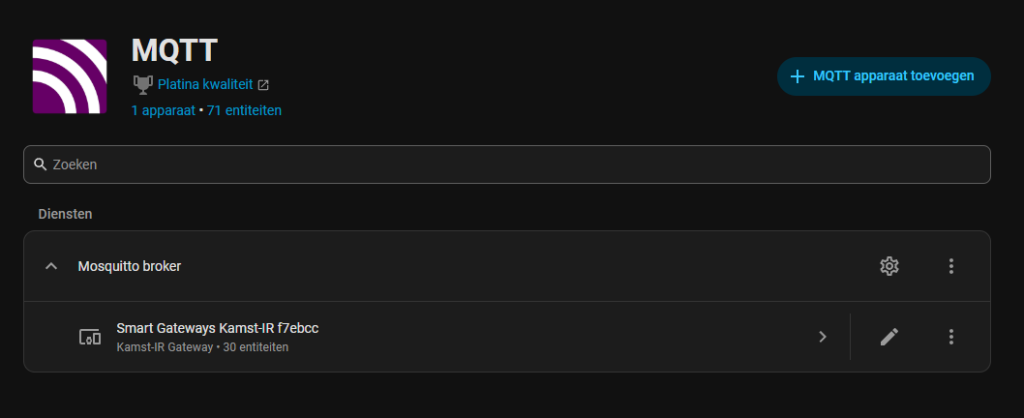
- Added MQTT Autodiscovery. Device is now added automatically under the Home Assistant MQTT integration
Firmware version 2026060801
This firmware contains the following improvements:
- Hidden SSIDs are now supported
- Improved WiFi reconnects (when the WiFi network is unavailable, the gateway attempts to reconnect 10 times at 20-second intervals. If unsuccessful, the gateway restarts)
- Improved MQTT reconnects (when the WiFi network is unavailable, the gateway attempts to reconnect 10 times at 20-second intervals. If unsuccessful, the gateway restarts)